A comfortable mouse can make long hours at a laptop or desktop feel noticeably easier on the wrist and forearm. A dual-mode wireless design connects via Bluetooth or 2.4G, then runs on a rechargeable battery to reduce cable clutter and disposable batteries. Below is a practical breakdown of what to expect, how to set it up, and how to get the most comfortable fit—especially if you’re bouncing between a home desk and a travel setup.
Quick overview: what this mouse is built for
- Ergonomic shape intended to support a more natural hand position for everyday work, browsing, and study sessions.
- Dual connection modes for flexible use: Bluetooth for compatible devices and 2.4G wireless (USB receiver) for plug-and-play setups.
- Rechargeable battery for repeat use without frequent battery replacement.
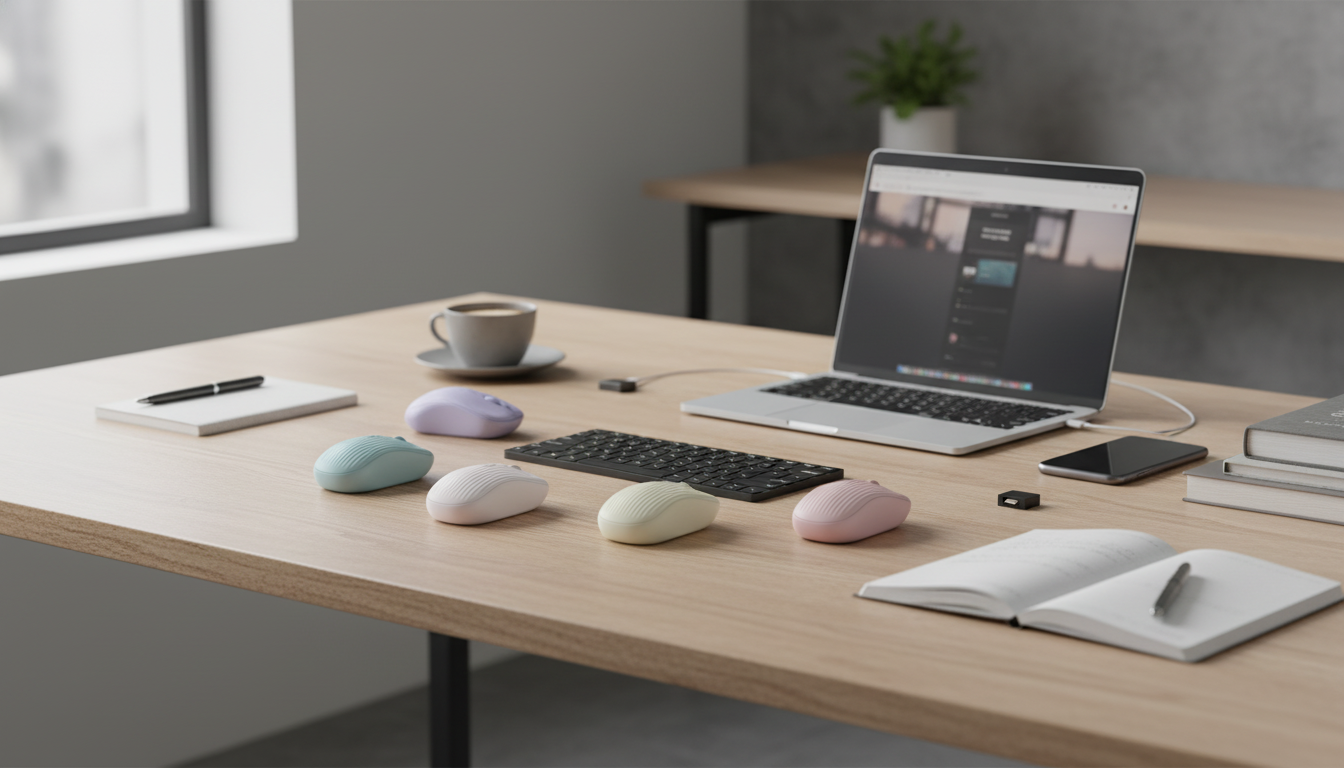
- Hybrid-friendly routine: keep one connection ready for a desktop at home while using the other for a laptop or tablet on the go.
If you’re shopping for a budget-friendly ergonomic option, the Ergonomic Dual Mode Bluetooth & 2.4G Wireless Mouse with Rechargeable Battery is designed around those everyday needs: comfort first, with practical connectivity that fits different devices.
Dual-mode connectivity: Bluetooth vs 2.4G in real-world use
Bluetooth and 2.4G wireless can both feel “instant” when everything is working well, but they shine in different scenarios. Bluetooth is great when you want a clean setup and you don’t want to keep track of a tiny receiver. The 2.4G receiver is often the simplest, most consistent route for desktops—especially when the computer sits under a desk or farther away.
Connection mode comparison
| Mode |
Best for |
Pros |
Things to watch |
| Bluetooth |
Laptops/tablets with built-in Bluetooth |
No dongle; clean setup; easy travel |
May need re-pairing after OS updates; performance can vary with RF interference |
| 2.4G wireless (USB receiver) |
Desktops and plug-and-play use |
Simple setup; often very stable |
Receiver can be misplaced; best performance when receiver is close and unobstructed |
Fast fixes when wireless feels “off”
- Bluetooth hiccups: remove the mouse from your Bluetooth list and pair again, especially after major system updates.
- Receiver placement: try a front USB port or a short USB extension so the receiver is closer to the mouse (and not hidden behind a metal case).
- Avoid interference: keep the receiver away from crowded cable clusters and some USB 3.0 hubs, which can contribute to interference in the 2.4 GHz band.
A simple, low-stress approach for multi-device routines is to leave the receiver in a desktop and reserve Bluetooth for a laptop or tablet.
Ergonomic fit: dialing in comfort in minutes
An ergonomic shape helps most when the rest of the setup supports it. The goal is a relaxed hand, neutral wrist, and fewer “tiny” wrist movements repeated all day.
- Hand position: aim for a comfortable, relaxed grip. Avoid pinching the mouse with fingertips; let the palm feel supported.
- Wrist posture: keep the wrist neutral—not cocked up or bent sideways. For longer cursor travel, move from the elbow/forearm rather than flicking the wrist.
- Desk setup check: keep the mouse close to the keyboard to avoid reaching. Relax shoulders and keep forearms roughly parallel to the floor.
- Fine-tuning: if precision work causes tension, slightly lower pointer speed so you can move with the arm instead of micro-corrections with the wrist.
For practical workstation guidance, OSHA’s computer workstation recommendations are a solid reference: OSHA Computer Workstations eTool. For broader ergonomics context and musculoskeletal risk factors, NIOSH provides helpful overviews: NIOSH Ergonomics and Musculoskeletal Disorders.
Rechargeable battery: what to expect day to day
Rechargeable mice are built for convenience: fewer battery purchases, less waste, and fewer interruptions. The easiest routine is to charge during a break or top up at the end of the workday, so the mouse is ready for the next session.
- Sleep behavior: many wireless mice conserve power by sleeping when idle; a click or small movement typically wakes it.
- Battery health habits: try not to leave it fully depleted for long periods, and charge from a reliable power source.
- Travel readiness: keeping a short charging cable in your bag prevents “dead mouse” surprises mid-trip.
If you like compact, car-friendly cable management for charging devices on the go, consider pairing it with the 66W 5A Fast Charging Spring Retractable USB Type C Cable – For Car & On-the-Go for quick top-ups and less tangling in a backpack or center console.
Setup guide: pairing and switching without frustration
Bluetooth pairing basics
- Enable Bluetooth on your device (Windows, macOS, iPadOS, Android, etc.).
- Put the mouse into pairing mode (often done via a mode button or a long-press on the connection switch).
- Select the mouse from the Bluetooth device list and confirm it connects.
2.4G receiver basics
Troubleshooting checklist
Where it fits best: work, study, and travel scenarios
Care, cleaning, and longevity
FAQ
Can this mouse connect to a laptop without using a USB receiver?
Yes. Use Bluetooth mode on laptops and tablets with Bluetooth built in. If your device doesn’t have Bluetooth or you prefer plug-and-play stability, use the 2.4G USB receiver.
What should be adjusted first to reduce wrist strain?
Start with posture and placement: keep the mouse close to the keyboard, relax your grip, and keep your wrist neutral. Then adjust pointer speed so longer movements come from the forearm instead of repeated wrist motions.
Why does the cursor sometimes lag or stutter on wireless mice?
Common causes include interference, a receiver that’s too far away (or blocked by a metal case), low battery, or a dusty sensor. Move the receiver closer, recharge the mouse, and clean the sensor area to restore smoother tracking.
Recommended for you











Leave a comment